Deleting your Kylee Account
Instructions for permanently deleting your account are found below. The process is completely self-service and is immediate after the final step is completed.
Step 1: Log in to Your Account and Select Profile
Step 2: Under Profile, select “Delete Account”
Step 3: Select Delete Account
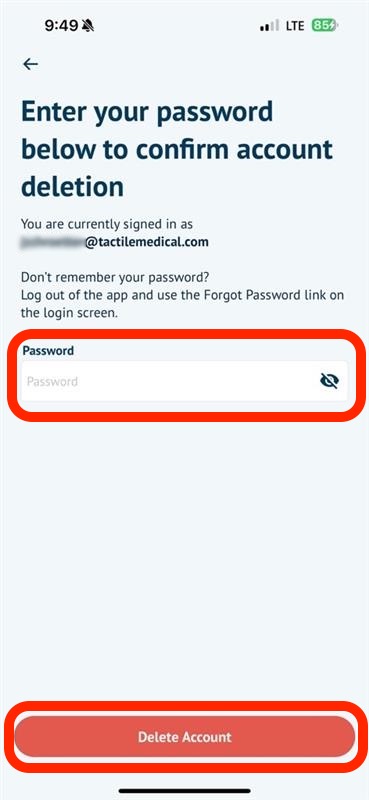
Step 4: Confirm Password
Step 5: Account Deleted
Step 1: Log in to your Account and Select Profile
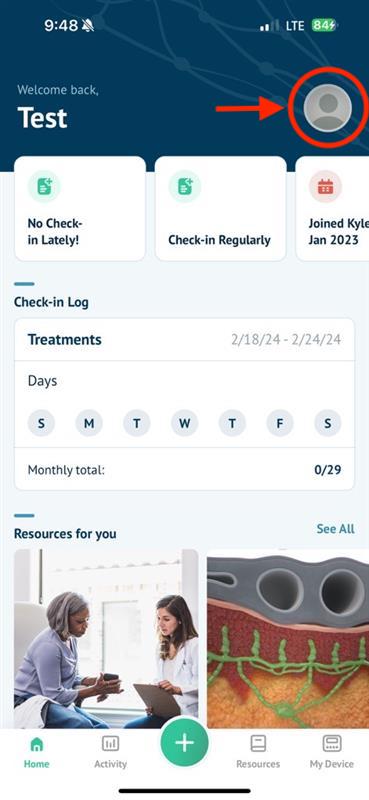
Log in to the Kylee application to access the profile settings at the upper right of the screen where your profile photo or initials are found.
Step 2: Select Delete Account
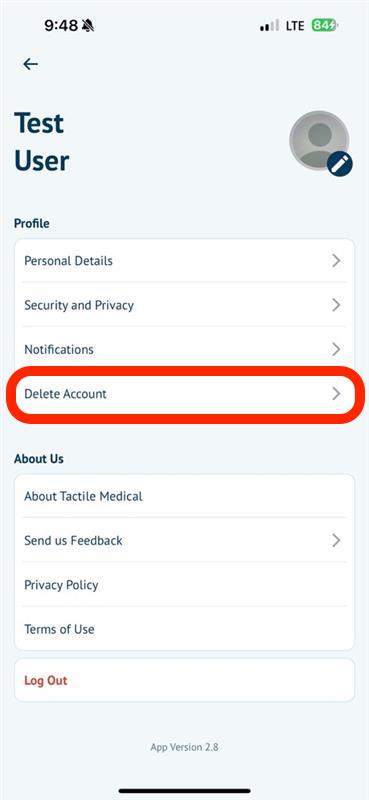
From the profile menu, select “Delete Account”
Step 3: Select Delete Account
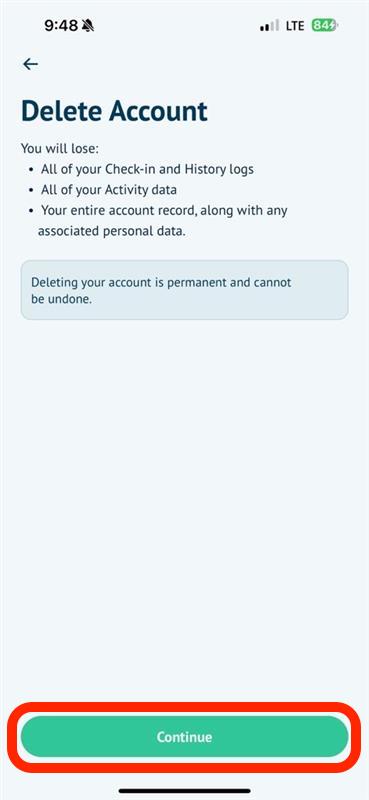
Review the details on the Delete Account page to understand the impact of deleting the user account. Select “Continue” to proceed with the permanent account deletion.
Step 4: Confirm Password
Review the details on the Delete Account page to understand the impact of deleting the user account. Select “Continue” to proceed with the permanent account deletion. After completing this step, your account cannot be recovered.
Step 5: Account Deleted
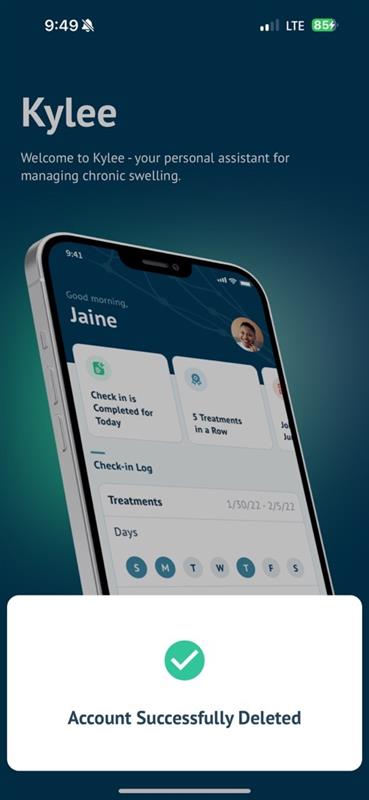
If the correct password has been entered, the confirmation screen will display the “Account Successfully Deleted” dialog and return to the login/sign up screen.